Selections
Marquee, lasso and magic wand selections in Photovibe, and what you can do with them.
A selection limits where the next edit lands. While one is active, painting, erasing and gradients only affect pixels inside it, and the boundary animates as marching ants.
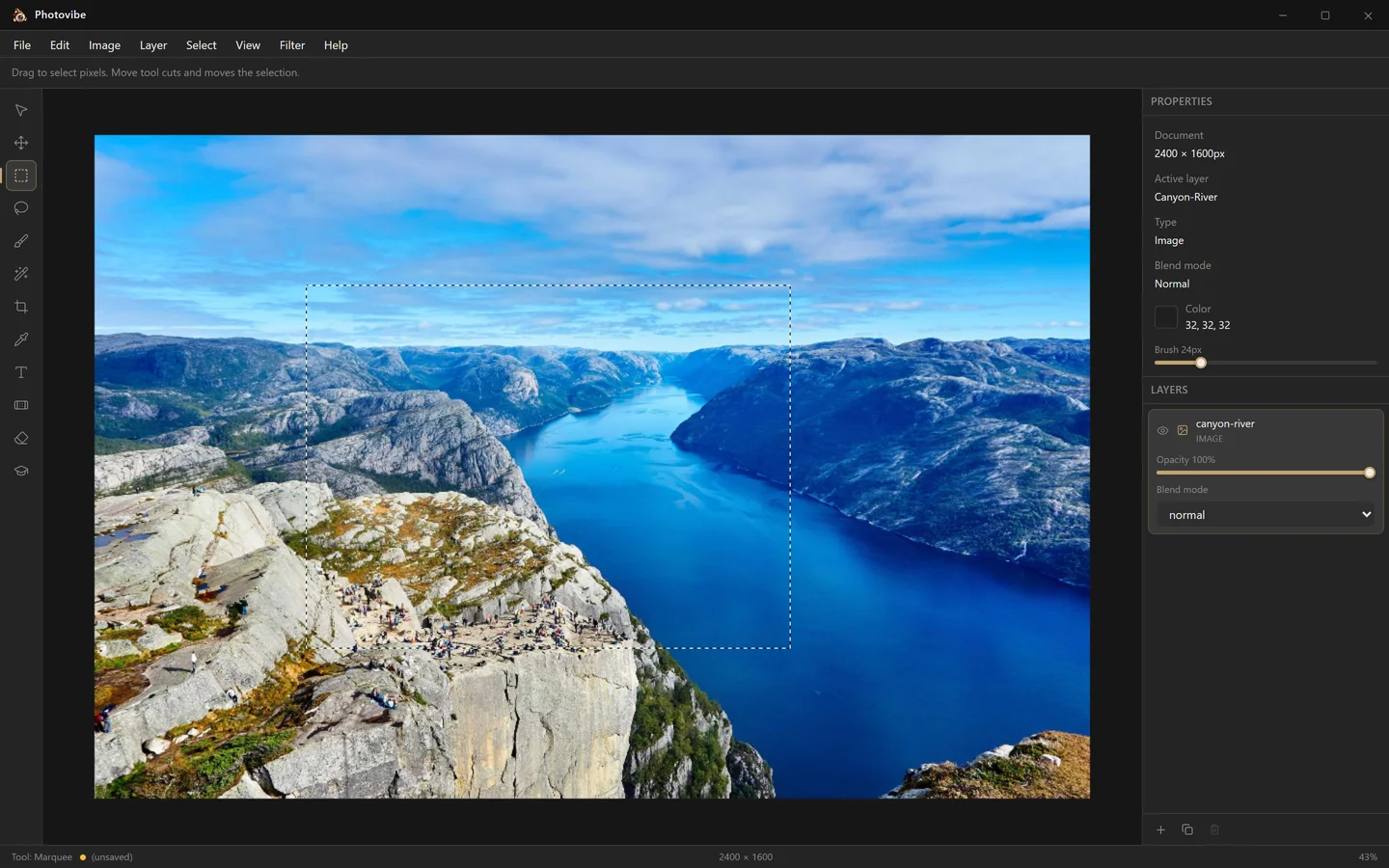
Making a selection
Marquee — M
Drag from one corner to the other. The simplest and most predictable of the three.
Lasso — L
Draw a freehand outline by dragging. The shape closes automatically when you release the button, joining your last point back to the first.
Magic wand — W
Click a pixel and Photovibe selects the connected region of similar colour around it, flooding outwards until the colour differs by more than the tolerance. Good for skies, flat backgrounds and other broad areas of even colour.
Using a selection
- Paint inside it — brush and eraser strokes are clipped to the selection.
- Move the selected pixels — with the Cursor tool (A), drag from inside the selection. The pixels lift off the layer and travel with the outline, leaving transparency behind.
- Move just the outline — Alt-drag with the Cursor tool. The pixels stay put and the selection moves to a new part of the image.
- Copy or cut it — Ctrl+C and Ctrl+X. Ctrl+V pastes the region back as a new layer.
- Filter it — everything under Image → Adjustments and Image → Filters applies only to the selected pixels while a selection is active.
Select menu
| Action | Shortcut | Status |
|---|---|---|
| All | Ctrl+A | Selects the whole canvas |
| Deselect | Esc | Clears the selection |
| Deselect | Ctrl+D | Clears the selection |
| Inverse | Ctrl+Shift+I | Not implemented yet |
| Refine Edge | — | Not implemented yet |
Inverse and Refine Edge appear in the menu but are greyed out; both are on the roadmap.
Tips
- Deselect before painting broadly — Ctrl+D or Esc. A forgotten selection silently confining your brush is the most common source of “why is nothing happening?”.
- Selections survive switching layers, so you can select once and then edit several layers through the same shape.
- Everything here is undoable — Ctrl+Z steps back through selection changes along with every other edit.