Tools and shortcuts
Every Photovibe tool, what it does, and the complete keyboard shortcut reference.
Photovibe has twelve tools in the left-hand column. Each has a single-key shortcut that works whenever you are not typing into a field.
The toolbar
| Tool | Key | What it does |
|---|---|---|
| Cursor | A | Click a layer to select it. With a selection active, drag to move the selected pixels, or Alt-drag to move just the outline. |
| Move | V | Drag the active layer around the canvas. Alt-drag moves the current selection instead. |
| Marquee | M | Drag out a rectangular selection. |
| Lasso | L | Draw a freehand selection. |
| Brush | B | Paint with a soft round brush in the foreground colour. |
| Magic Wand | W | Select a contiguous region of similar colour. |
| Crop | C | Drag out a region and commit it to trim the document. |
| Eyedropper | I | Sample a colour and make it the foreground colour. |
| Text | T | Click to place a text layer; type, then press Enter. |
| Healing | J | Blend a blemish away using surrounding pixels. |
| Eraser | E | Erase to transparency on any pixel layer. |
| Gradient | G | Drag to draw a linear gradient from the foreground colour. |
Brush and eraser
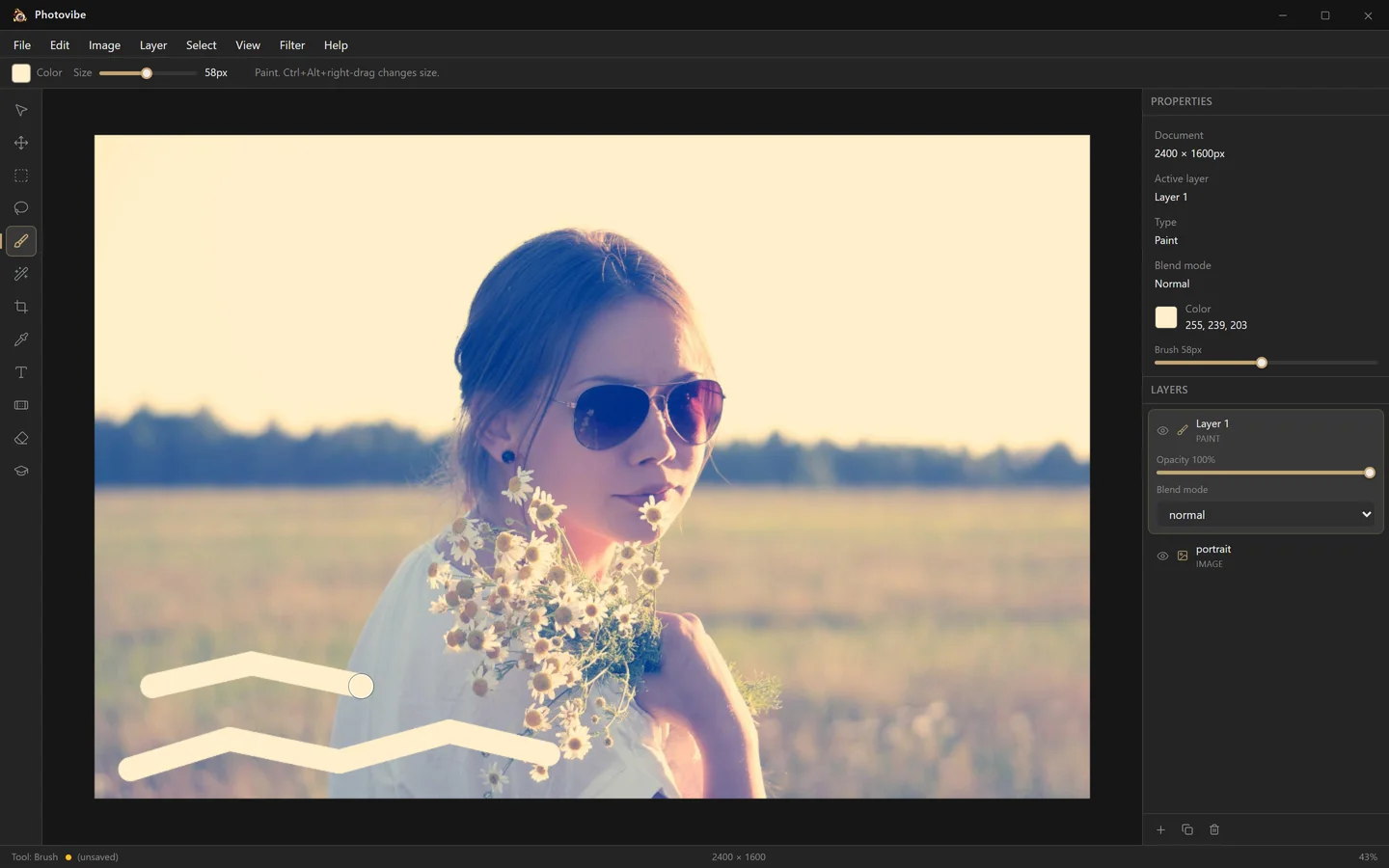
The options bar shows the current colour and a size slider while the brush, eraser or healing tool is active. You can also resize without leaving the canvas: hold Alt and right-drag. The cursor stays pinned while you drag and returns to where it started, and the ring previews the size as you go.
Strokes are clipped to the active selection, so a marquee or lasso is the simplest way to confine painting to one part of the image.
Painting on an image layer edits that image directly. If you would rather keep the original intact, add a layer first with Layer → New Layer (Ctrl+Shift+N) and paint on that.
Eyedropper
Click anywhere on the canvas to make that colour the foreground colour. In the desktop build the eyedropper can also sample from outside the Photovibe window — anywhere on your screen — which is useful for matching a colour from another application.
Once you pick a colour, Photovibe switches back to whichever tool you were using before, so sampling mid-stroke costs nothing.
Choosing a colour directly
Click the colour swatch in the options bar, or the one in the properties panel, to open the colour picker: a hue and saturation wheel with a value slider, plus RGB, HSL, alpha and hex fields.
Text
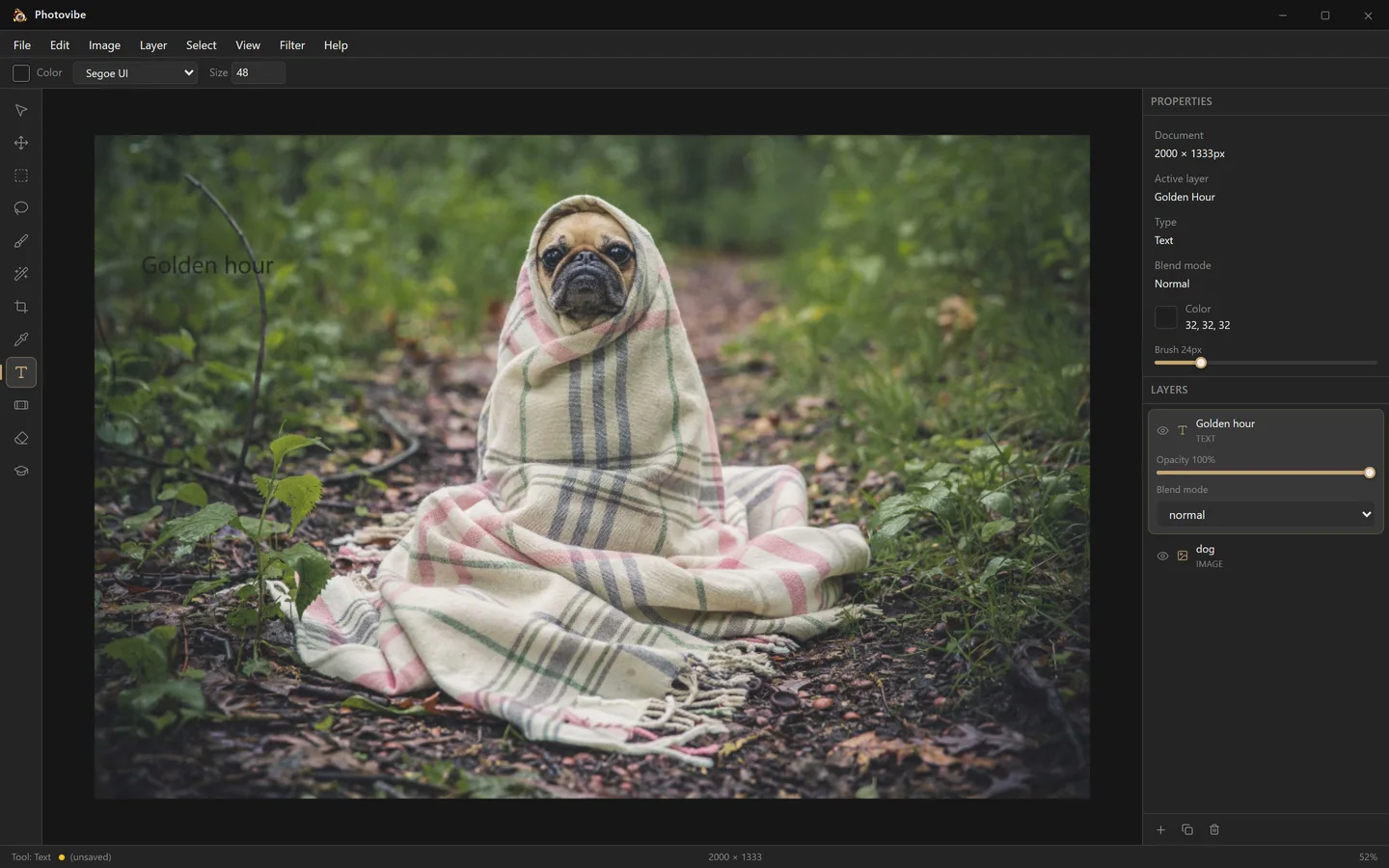
Pick the Text tool, click where the text should start, and type. The options bar lets you choose any font installed on your system and set the size. Press Enter to commit it as a real text layer, or Esc to abandon it. Clicking an existing text layer with the Text tool reopens it for editing.
Keyboard shortcuts
File
| Action | Shortcut |
|---|---|
| New document | Ctrl+N |
| Open | Ctrl+O |
| Save | Ctrl+S |
| Save As | Ctrl+Shift+S |
Edit
| Action | Shortcut |
|---|---|
| Undo | Ctrl+Z |
| Redo | Ctrl+Shift+Z or Ctrl+Y |
| Copy the selected region | Ctrl+C |
| Cut the selected region | Ctrl+X |
| Paste image from clipboard | Ctrl+V |
Layer
| Action | Shortcut |
|---|---|
| New layer | Ctrl+Shift+N |
| Duplicate layer | Ctrl+J |
Select
| Action | Shortcut |
|---|---|
| Select all | Ctrl+A |
| Deselect | Ctrl+D or Esc |
Image and View
| Action | Shortcut |
|---|---|
| Image size | Ctrl+Alt+I |
| Show / hide grid | Ctrl+’ |
| Zoom in | Ctrl++ |
| Zoom out | Ctrl+- |
| Fit to screen | Ctrl+0 |
| Actual size | Ctrl+1 |
On the canvas
| Action | How |
|---|---|
| Pan | Hold Space and drag |
| Zoom | Scroll wheel |
| Resize brush | Alt+right-drag |
| Move the selected pixels | Drag inside the selection with the Cursor tool |
| Move the selection outline | Alt-drag with the Cursor tool |
| Add an image | Drag an image file onto the canvas |